Overwhelmed at Work: A 20-Minute Task List Reset
Overwhelmed at work? Use a 20-minute task list reset to capture open work, defer or clarify the rest, and choose three next actions without guessing.
By All-in-One Task Tracker by Cosmo Suite · Editorial policy
Published · 7 min read
General information, not medical advice. Talk to a clinician if you need more.
When work is spread across email, chat, and separate lists, it can be hard to see what needs attention first. A longer list adds to the noise when every item looks equally active.
If you feel overwhelmed at work, take 20 minutes to reset the task list: capture open work, mark what needs a decision, and choose up to three next actions. The three is a cap for this exercise, not a rule about how much you can handle. The goal is to leave with a visible next step and a short list of questions for whoever sets priorities.
Overwhelmed at Work at a Glance
When a work list feels too large, separate tasks by the next move: do, defer, clarify, or drop. Then choose up to three actions that fit the time available. This keeps the list useful without pretending that a spreadsheet can resolve conflicting deadlines or add capacity.
| Move | Put a task here when… | Next action |
|---|---|---|
| Do | It is due soon and the next step is clear | Write the first physical action |
| Defer | It matters, but another date or task comes first | Add a review date |
| Clarify | The deadline, owner, or expected result is unclear | Ask one specific question |
| Drop | It no longer needs to be done | Remove it from the active list |
Some tasks need your time. Others need a decision before you can work on them. If a due date conflicts with another commitment, put it in Clarify and ask who owns the priority. A task list template with status and due-date fields makes that split easier to see. If you want one spreadsheet where the task list and priority views use the same rows, see the task tracker file.

The Thursday List, Worked Through
A short example shows how the reset works when several kinds of tasks compete for one day. Treat the names and dates here as a made-up workday, not a claim about a typical job. The useful part is the decision beside each item: do it, move it, clarify it, or remove it.
Imagine your Thursday list has eight entries:
We made up this Thursday list to show how the decisions work. It is an example, not reader data or a claim about a typical job.
| Task | Due | Status before reset | Decision |
|---|---|---|---|
| Send the revised report outline | Thursday | Not started | Do |
| Confirm Friday meeting room | Thursday | Not started | Do |
| Review a draft from a colleague | Friday | In progress | Do |
| Update an old reference document | No date | Not started | Defer |
| Reply to a request missing its file | Thursday | Waiting | Clarify |
| Recheck a completed form | Next week | Not started | Defer |
| Sort a folder of old downloads | No date | Not started | Drop or defer |
| Ask whether the new request replaces an earlier one | Thursday | Blocked | Clarify |
The first three have a clear next action and a near deadline. The waiting task needs its missing file, so starting it now means guessing. The blocked request needs a decision about scope. Put both in Clarify and send one message with the question. A task status is its current state, such as Not Started, In Progress, Waiting, or Complete. It separates work you can do from work that needs a reply.
The old reference document and next week's form do not need a Thursday slot. Give each a review date so they do not disappear, then take them out of today's view. The download folder can be dropped if no one depends on it. If you are unsure, defer it with a date instead of keeping it at the top of the list.
This example has three Do items, two Clarify items, two Defer items, and one Drop-or-Defer item. That count is only a description of this example. Your list may produce a different split.
Step 1: Capture the Open Work
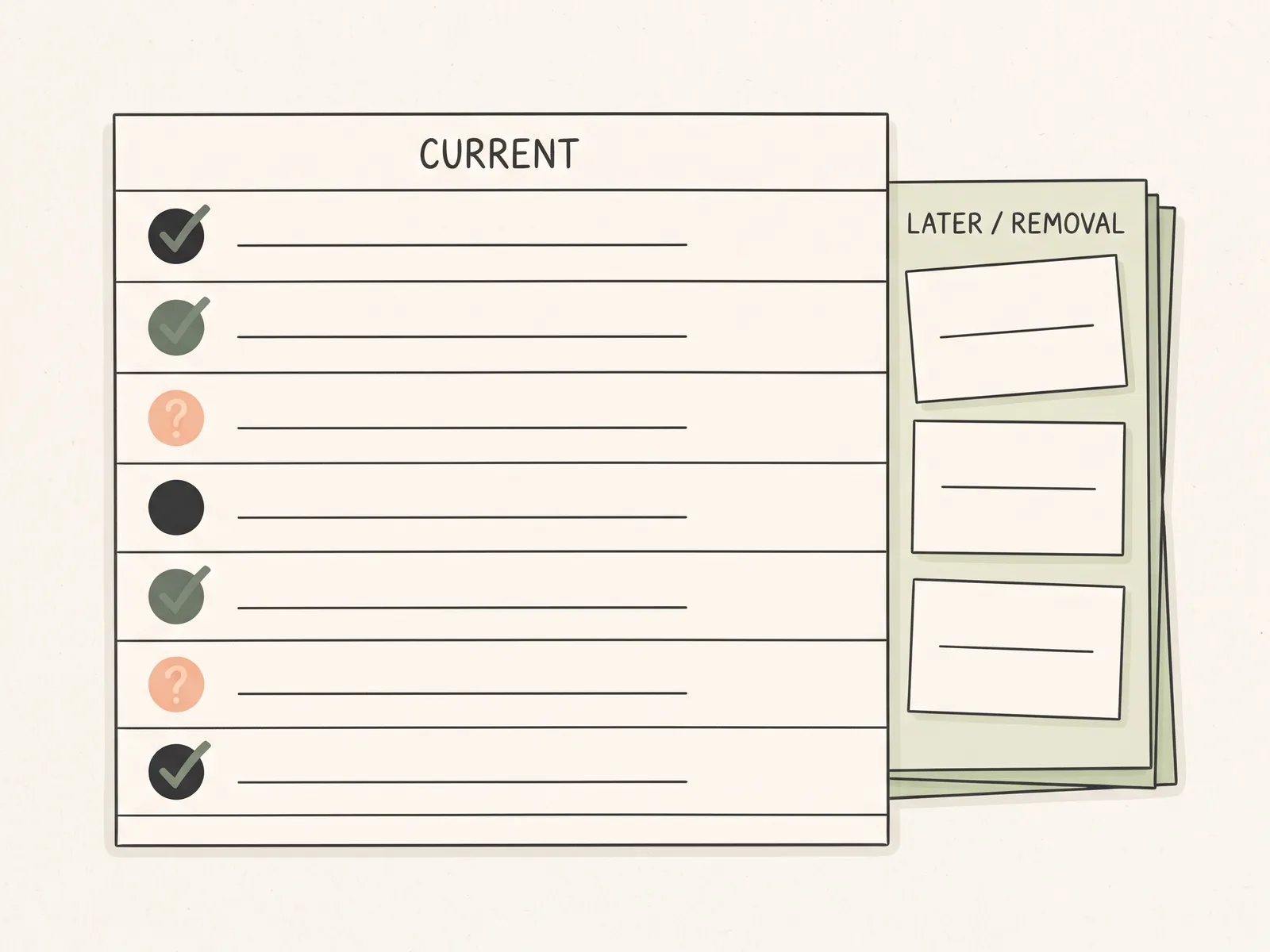
Spend the first five minutes writing down the tasks that are pulling at your attention. Check your current task list, calendar, and messages, but add only a task that needs an action. Do not copy every conversation or message into the list. The aim is one view of the commitments you need to sort.
Use four columns to start:
| Task | Due date | Status | Next action |
|---|---|---|---|
| Revised report outline | Thu | Not started | Add section headings |
| Friday meeting room | Thu | Not started | Confirm room booking |
| Missing-file request | Thu | Waiting | Ask sender for attachment |
Keep each task short and specific. “Report” is hard to start; “add section headings to the report outline” tells you what to do. If there is no confirmed due date, leave the date blank or mark it “none.” Do not invent a deadline to make the row look complete.
The task tracker Excel guide explains how task, due date, priority, status, and recurrence can live in a consistent table. For this reset, use only the fields that help you decide the next move.
Step 2: Cut the Active List to What Needs Attention
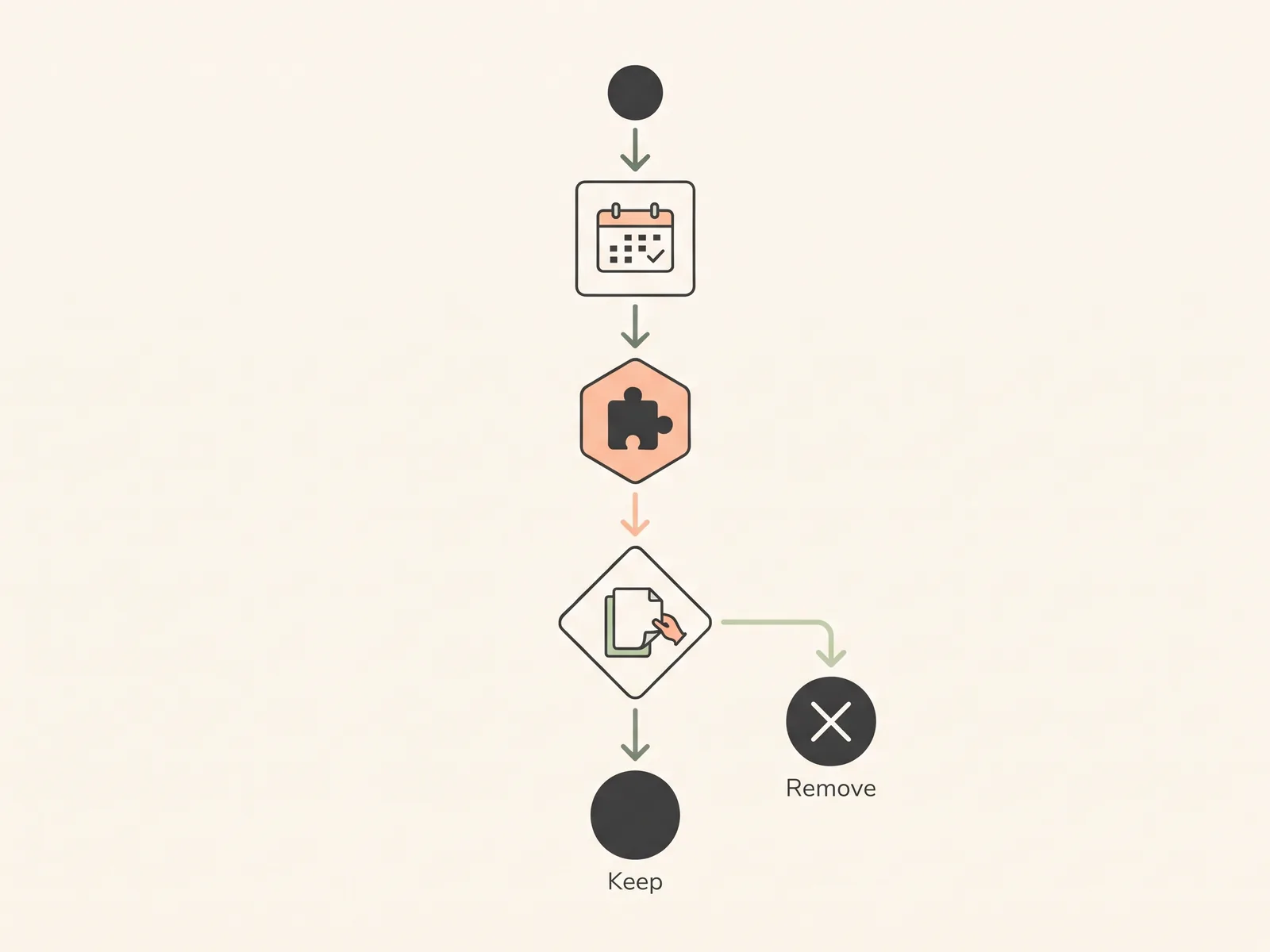
Use the next ten minutes to sort each task into Do, Defer, Clarify, or Drop. Start with the due date and the next action, then check whether the work still matters. This is a quick triage, not a judgment about your value or effort.
Ask these questions in order:
- Is there a real deadline? Record the date and who set it. “Soon” is not a date.
- Can I start without another person or missing information? If not, put it in Clarify or Waiting.
- Does this still need to be done? If not, remove it from the active list.
- Can it wait? Give deferred work a review date and move it out of today.
The American Psychological Association recommends listing commitments, assessing priorities, and removing tasks that are not essential when managing stress. The Occupational Safety and Health Administration advises supervisors to examine workload and consider reassigning or prioritizing tasks. These sources support making the workload visible and discussing trade-offs. They do not show that a 20-minute reset will solve a workload problem. APA guidance on stress · OSHA supervisor guide
Step 3: Choose Three Next Actions
Use the last five minutes to select up to three tasks for the next work block. Pick items with a real deadline, a clear next action, and enough time available to make progress. If one task is large, split it into a first step and select fewer tasks. The number is a planning limit for this reset, not a research-backed quota. A task tracker in a spreadsheet can keep the task, due date, status, and next action together, so you can see what is ready and what is waiting.
For each selected task, write the first action as a verb phrase. “Work on report” leaves the decision open. “Add the three section headings” is easier to begin and easier to mark complete. If the action depends on someone else, write the request you need to send instead.
Everything else stays visible, but outside the active set. Give deferred tasks a date. Keep waiting tasks in a separate status so they do not look like work you can do now. Put unclear work in Clarify with the name of the decision maker, when you know it.
When the List Still Does Not Fit
A task list can show that work exceeds the available time, but it cannot decide which deadline should move. If every item is urgent, two people set conflicting priorities, or a task has no clear owner, ask for a decision instead of adding longer hours to the plan.
Send a short message with three parts:
| Include | Example |
|---|---|
| The conflict | “The report outline and review are both due Thursday.” |
| The choice needed | “Which one should I finish first?” |
| The trade-off | “If I take the outline first, the review will move to Friday.” |
Keep the message neutral and specific. Show the work, the deadline, and the choice you cannot make alone. That gives the other person something concrete to answer.
If the problem is a missing file, approval, or answer, move that task to Waiting and record who you contacted. If the work remains too large after priorities are clear, the next step is a workload conversation. OSHA recommends regular worker check-ins about stressors and ways to improve the work situation. OSHA guidance for workers A tracking file can organize tasks; it cannot reduce the amount of work assigned.
Where the All-in-One Task Tracker Fits
The All-in-One Task Tracker (by Cosmo Suite: one Excel and Google Sheets file, 11 tabs, $9 once) can hold a task list and show the same rows in calendar and priority views. The tracker includes Variable Tasks, Recurring Tasks, a Task Filter, calendars, a Decision Matrix, Kanban, and Gantt tabs. It does not send reminders or decide team priorities.
If you want one file for work, study, and home tasks, you can review the spreadsheet task tracker. Its Task Filter offers 15+ options, and the Decision Matrix uses Do, Decide, Delegate, and Delete. Those views can help you sort work you have already captured, but you still choose what to do and ask a manager to resolve conflicting deadlines.
The file suits people who want an Excel and Google Sheets tracker they can own and inspect. A task app may fit better if you need push reminders, calendar sync, or shared team assignments. If you mainly need a list with due dates, start with the spreadsheet task tracker and keep the views you will use.
Frequently asked questions
What should I do first when I feel overwhelmed at work?
Start by writing down the work that is taking up attention, then mark what has a real deadline today. Choose one task that is both due soon and clear enough to begin. If the list exceeds the time you have, ask your manager which item should move.
How do I tell my manager I am overwhelmed with work?
Bring a short list of active tasks, their deadlines, and the next step each needs. Ask which item should take priority or move if everything cannot fit. This makes the trade-off specific and gives your manager a clear choice to make.
Should I make a to-do list when I am overwhelmed?
Yes, if the list helps you see the work in one place. Keep the first pass small: task, due date, status, and next action. A list is a record, not a promise to finish everything today. Move unclear or waiting tasks out of the active set.
How many tasks should I choose for today?
Choose a small set that fits the time you have after meetings and fixed commitments. This guide uses three as a planning cap, not a universal rule. If one task is large, it may be the only item you can reasonably move forward today.
What if every task feels urgent?
Check the actual due date and who is waiting for each task. If two deadlines conflict, do not guess which one matters more. Show the conflict to the person who sets priorities and ask which result should come first.
When should I ask for help with my workload?
Ask when the active list cannot fit the available work time, priorities conflict, or you lack information or access needed to start. Share the task, deadline, blocker, and the decision you need. A list can show the trade-off, but it cannot set your team's priorities.
