Free Task List Template: Copy It, Then Add the 5 Columns That Matter
Task list template you can copy free: a 7-column layout for Excel or Google Sheets, filled in with 12 tasks, plus the 5 columns that turn a list into a plan.
By All-in-One Task Tracker by Cosmo Suite · Editorial policy
Published · 7 min read
Most free task list templates provide two columns: a task and a checkbox. That's fine for a grocery run. It fails the first week a task has a deadline, repeats, or belongs to someone else. A task tracker built for deadlines, repeats and owners handles those three situations. The free layout below covers the basics.
Here's the fix in one line: copy the 7-column layout below into Excel or Google Sheets. Then complete all five planning columns (due date, priority, status, repeats, owner) for every row, including the small ones.
Below is the layout, a completed example with 12 tasks, and what each column contributes as the list grows.
Task List Templates at a Glance
A task list template is a reusable layout of columns, completed identically for every task. Templates differ mainly in how many planning columns they include, and that determines their usefulness over time.
| Template type | Columns | What it handles | Best for |
|---|---|---|---|
| Printable checklist | Task, checkbox | One day, nothing carried over | Errands and packing lists |
| Basic digital list | Task, due date, done | Deadlines, sorting by date | A short list with no repeats |
| 7-column planning list | Task, due, priority, status, repeats, owner, notes | Deadlines, order, repeats, handoffs | Work, study and home in one list |
| Linked tracker | The 7 columns plus calendars and views | All of the above, seen several ways | Lists past 30 or 40 open tasks |
The 7-column version is the one to copy. It requires 5 additional cells per task and prevents a complete rebuild of the list later.
The 12-Row List, Filled In
Here is the template completed with 12 tasks from one ordinary fortnight.
| Task | Due date | Priority | Status | Repeats | Owner |
|---|---|---|---|---|---|
| Send invoice to client | Oct 6 | High | Not started | Monthly | Me |
| Finish online course module 3 | Oct 9 | Medium | In progress | Once | Me |
| Submit visa document scan | Oct 7 | High | Waiting | Once | Me |
| Clean out fridge | Oct 10 | Low | Not started | Weekly | Sam |
| Call insurance about claim | Oct 8 | High | Not started | Once | Me |
| Water plants | Oct 6 | Low | Done | Weekly | Sam |
| Update CV | Oct 20 | Medium | Not started | Once | Me |
| Pay phone bill | Oct 15 | Medium | Not started | Monthly | Me |
| Book car service | Oct 18 | Medium | Not started | Yearly | Me |
| Weekly 1:1 notes | Oct 7 | Medium | Not started | Weekly | Me |
| Return library books | Oct 12 | Low | Not started | Once | Sam |
| Plan a weekend visit | Oct 25 | Low | Not started | Once | Me |
Read down each column and the counts start to sort the list for you:
- Status: 1 Done, 1 Waiting, 1 In progress, 9 Not started. Chase the Waiting row today.
- Priority: 3 High, 5 Medium, 4 Low. All 3 High tasks are due within 3 days, so they're scheduled first.
- Repeats: 6 of 12 rows repeat (3 weekly, 2 monthly, 1 yearly). A two-column list would require retyping them every cycle.
- Owner: 3 rows belong to Sam. Filtering them out reduces your personal list to 9.
The Repeats count is where the upkeep hides. Consider retyping those 6 repeating tasks for an entire year. That's 3 weekly tasks × 52 weeks, plus 2 monthly tasks × 12 months, plus 1 yearly task. The total is 156 + 24 + 1 = 181 rows typed by hand. A Repeats column reduces that to 6 rows you periodically update.
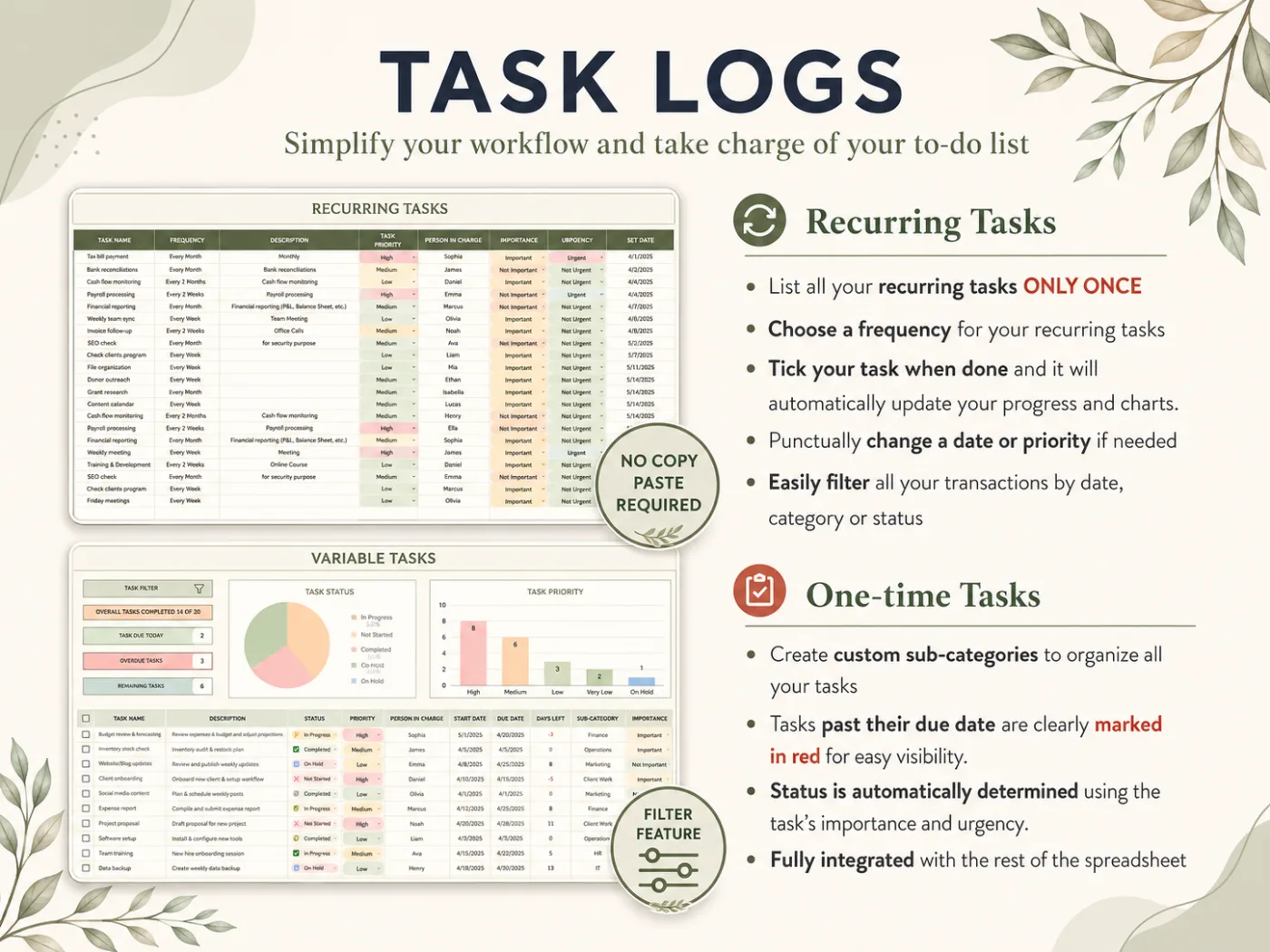
The screenshot shows the tracker's built-in sample data, not the 12 rows above.
Copy This Template
Paste these headers into the first row of a blank spreadsheet.
| Task | Due date | Priority | Status | Repeats | Owner | Notes |
|---|---|---|---|---|---|---|
| (verb + object) | (date) | High / Medium / Low | Not started / In progress / Waiting / Done | Once / Weekly / Monthly / Yearly | (name) | (link or detail) |
Then set dropdowns on Priority, Status and Repeats. In Excel that is data validation with a list. In Google Sheets, use a dropdown chip. Alternatively, add native checkboxes through Insert, then Checkbox, if you prefer ticking to selecting a status.
The 5 Columns That Turn a List Into a Plan
Five additional columns handle the planning. They record the deadline, the importance, the current progress, the frequency and the responsible person.
Due date
A due date is the real calendar day a task must be finished, never "soon". Sort by it each morning and today's work floats to the top. Add a days-left column (=B2-TODAY()) and anything negative is overdue.
Priority
Three levels are enough. The UNC Learning Center's priorities worksheet uses the same three: must do, should do, could do. With more than three categories, you spend energy ranking instead of completing.
If everything drifts to High, split priority into two yes/no questions: is it urgent, and is it important? The split traces back to a line Dwight Eisenhower quoted in a 1954 address in Evanston, Illinois. He attributed it to a former college president: there are two kinds of problems, the urgent and the important.
Status
Status is the column that records progress, with four values: Not started, In progress, Waiting, Done. "Waiting" is the value people usually omit, and it's the most valuable. It identifies tasks blocked by someone else, so you know whom to remind.
Repeats
This column keeps a list alive past its first month. Mark a task Weekly or Monthly once. When you tick it done, you'll remember to set the next date instead of losing it. If resetting dates manually gets tedious, a tracker that schedules recurring tasks from one row lists the next dates automatically.
Owner
Even a personal list involves other people, for example a partner, a flatmate or a colleague. An owner column lets you filter to "mine" and hand the rest over with a clear name attached.
In the 12-row example, filtering Owner to Sam shows 3 tasks: the fridge, the plants and the library books. That filtered view becomes the list you share with Sam, while the remaining rows stay yours. Nobody has to guess who is returning the library books, either.
Three Mistakes When Filling It In
The template only helps if every row is actionable. Three habits undermine it.
Vague task names. "Insurance" is a topic. "Call insurance about claim" is a task you can start immediately. Begin every row with a verb.
Dates on everything, or on nothing. Consider an artificial due date on "Plan a weekend visit", invented to feel organized. It eventually turns red, gets ignored, and trains you to disregard every red warning. Give real deadlines a date, leave the rest blank, then filter blanks into a "someday" view.
One row hiding three tasks. "Sort out the car" contains a service appointment, a registration renewal and a tyre inspection. Separate it into three rows with individual dates and owners, otherwise it remains In progress for a month.
Fix these and the 12-row example above stays readable at 50 rows.
How to Keep the List Usable Past 30 Tasks
A 12-row list fits on one screen. A 60-row list requires four habits, otherwise it gets abandoned: filtered views, hidden completed rows, one row per repeating task and a weekly review.
Filter, don't scroll. In Google Sheets, filter views save "Today", "Waiting" and "Sam" as named views. Other people's views stay unaffected. Excel tables give you the same filters on every header.
Hide Done, don't delete it. Deleting rows destroys the record of everything you completed. A filter on Status ≠ Done keeps the visible list short and the history intact.
Repeat tasks get one row, not many. A weekly task duplicated 52 times becomes 52 separate rows to manage. One row with Repeats = Weekly is cleaner, even when you update its date manually.
Review once a week. Spend ten minutes every Friday chasing the Waiting rows, rescheduling anything that slipped, and deleting what's no longer relevant. Then sort by due date so Monday begins with the right three priorities on top.
Where the Example and Sources Come From
The Cosmo Suite team behind the All-in-One Task Tracker wrote this guide. Read more about who runs this site. Our methodology: the 12-row list is an example written for this post. The counts and the 181-row total were calculated from it on 3 October 2026. We opened every help page and source on that date, as our editorial policy on sources and corrections requires. If something has changed, contact us through the site and we'll update it.
Where the All-in-One Task Tracker Fits
The free layout above is a good start, and many people never need more. You've outgrown it when you update repeat dates manually every week or keep asking which High task comes first. Wanting a calendar view is another signal.
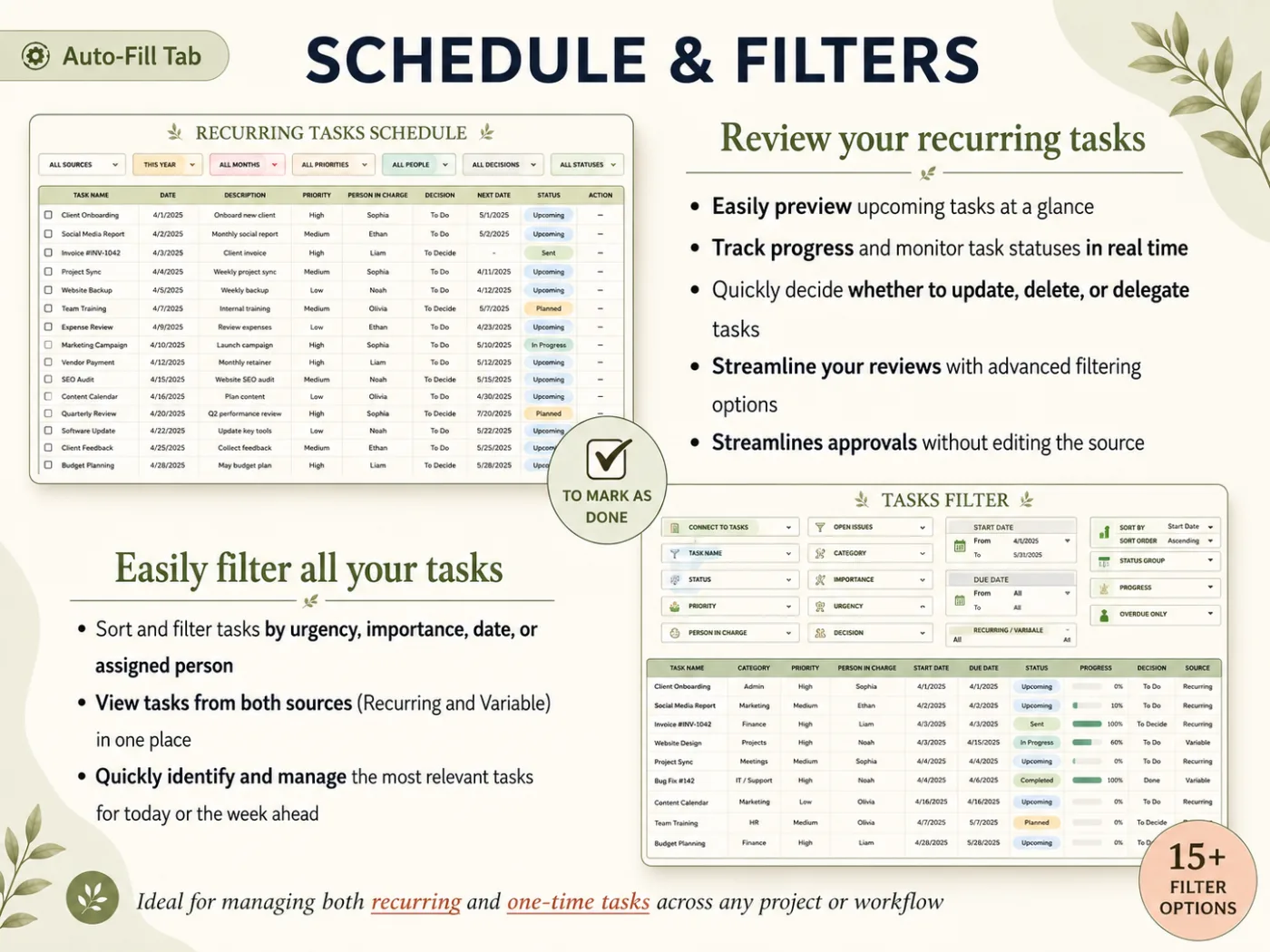
The All-in-One Task Tracker uses the same planning columns and does the next part for you. One-off tasks go on the Variable Tasks tab. Repeating ones go on the Recurring Tasks tab once, with a frequency, and the Task Schedule lists their next dates. The Weekly and Monthly Calendars, the Decision Matrix (Do, Decide, Delegate, Delete), the Kanban Board and the Gantt Chart read from those same rows. The Task Filter has 15+ options. It works in Excel and Google Sheets, handles up to 10,000 tasks, and costs $9 once.
For the full setup on a real week, read how a task tracker in Excel plans, prioritizes and repeats tasks. For mostly academic lists, the assignment tracker guide built around one semester applies the same columns to courses. Every tab is shown on the Excel and Google Sheets task tracker page.
Frequently asked questions
What should a task list template include?
At minimum: the task, a due date, a priority, a status, how often it repeats, and who owns it. A notes column is optional. Without due date and status you have a reminder list. Without recurrence and owner, the list breaks the first time a weekly task or a shared job appears.
Is a printable task list template enough?
For a single day, yes. Paper is fast and has no setup. It stops working once tasks carry over: you rewrite unfinished items every morning, and there is no way to sort by due date or hide what is done. A spreadsheet keeps the same rows and lets you re-sort them.
Can I use the same template in Excel and Google Sheets?
Yes. The 7-column layout in this post works in both, with dropdowns and a checkbox or status column. Google Sheets has native checkboxes under Insert, and Excel uses data validation lists. Formulas such as COUNTIF and TODAY behave the same in both for a list like this.
How many tasks should be on my list?
There is no fixed number, but a list longer than you can scan in a minute needs filters. Keep the full backlog in the sheet and filter the view to today and this week. A daily view of 5 to 10 tasks is easier to act on than the whole list.
How do I handle tasks that repeat every week?
Give them a Repeats value such as Every week or Every month instead of copying a new row each time. In a plain sheet you still create the next row yourself when you finish one. A template with a recurring tasks tab generates the dates for you.
What is the fastest way to go from a free template to a full tracker?
Copy the free layout first and use it for two weeks. If you find yourself copying weekly tasks, asking what to do first, or wanting a calendar view, move to a linked tracker. The All-in-One Task Tracker uses the same columns and adds the recurring tab, calendars and a priority matrix.
Sources
- Google Docs Editors Help: Add and use checkboxes
- Google Docs Editors Help: Create and manage filter views
- Microsoft Support: Apply data validation to cells
- UNC Learning Center: Priorities Worksheet: Must do, Should do, Could do
- The American Presidency Project (UC Santa Barbara): Address at the Second Assembly of the World Council of Churches, Evanston, Illinois, August 19, 1954