To-Do List Template for Excel: Build a List You Can Keep Using
Copy a practical Excel to-do list template with due dates, priority, status, and recurrence. See how to adapt the same task list for daily and weekly views.
By All-in-One Task Tracker by Cosmo Suite · Editorial policy
Published · 7 min read
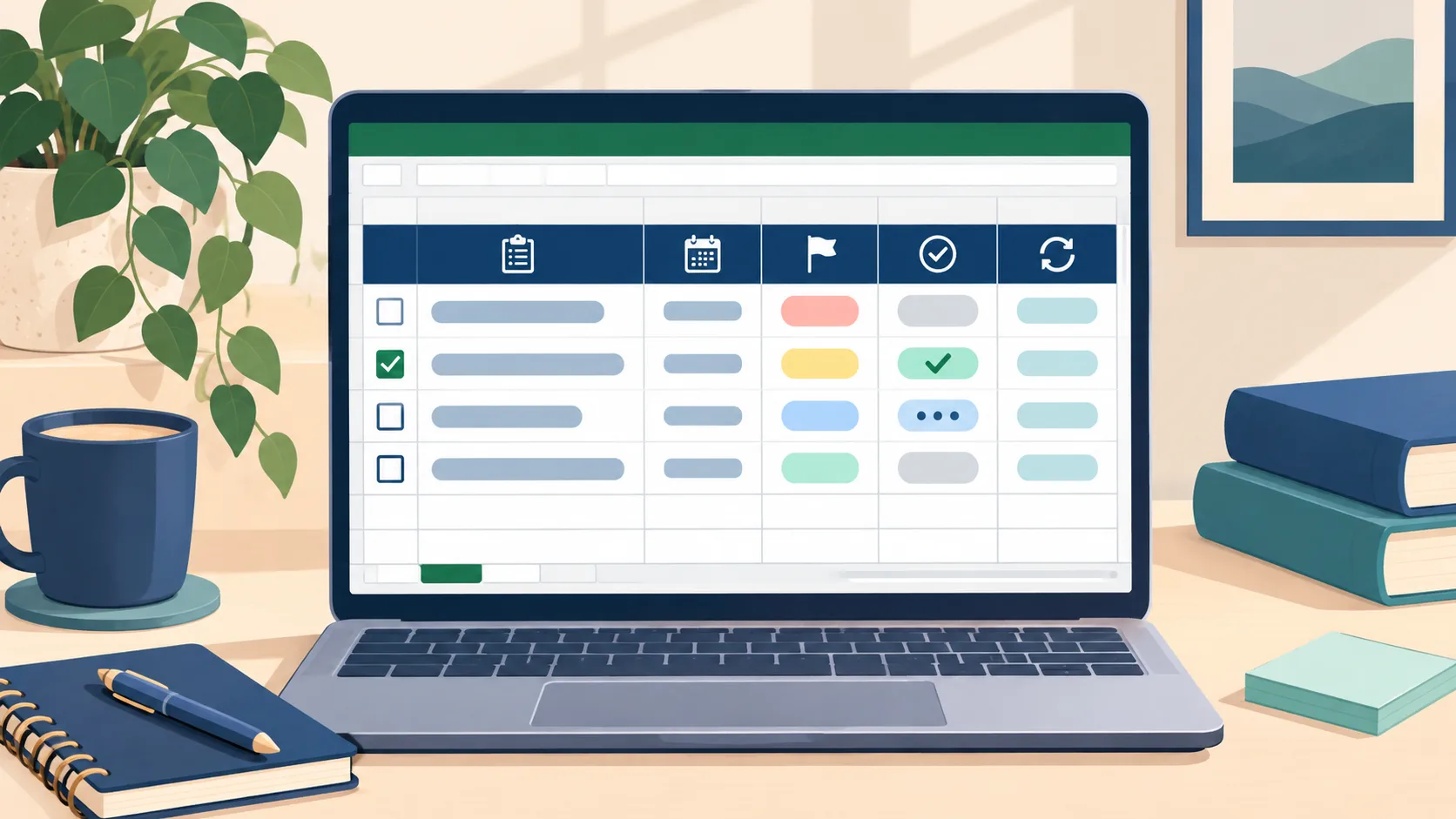
A useful Excel to-do list template needs more than a task and a checkbox. Add a due date, priority, status, and repeat value so you can sort the list without rewriting it each morning. This guide gives you a copyable structure and a worked weekly example.
You do not need a complicated workbook. Start with one row per task. Add only the columns that help you decide what to do next, then use filters to make a shorter view for today.
To-do list template options at a glance
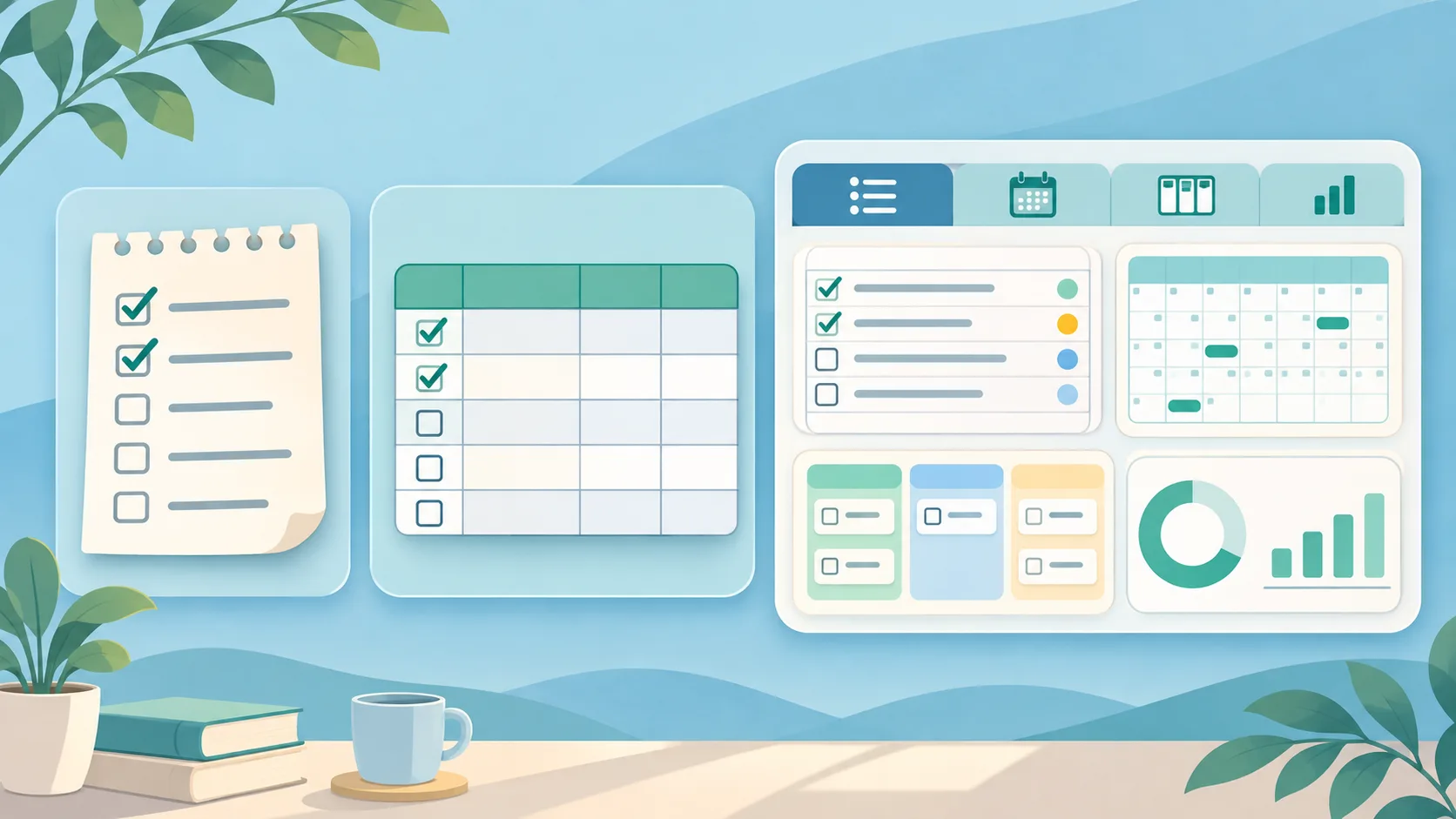
Choose the smallest to-do list template that answers your questions. A printable checklist handles one-off errands. An Excel table adds sorting and filters. A linked tracker can add calendars and other views, but it also takes more learning.
| Template | Useful columns or features | Best for |
|---|---|---|
| Printable checklist | Task, check box | A short one-time list |
| Basic Excel list | Task, due date, status | A handful of dated tasks |
| Planning list | Task, due date, priority, status, repeat | Work, study, and home tasks together |
| Multi-view tracker | Task list plus calendars or boards | People who want several views of the same tasks |
For most personal lists, start with the planning list. Microsoft’s current Excel template page also shows free options, including simple to-do lists and progress trackers. Its examples include priority, status, due dates, and category fields. (Microsoft Excel templates, checked November 11, 2026.)
A to-do list template is a reusable layout that gives each task the same set of fields. That consistency is what makes sorting useful. If one row stores a deadline in Notes and another stores it in Due date, a date filter cannot group them reliably. The layout matters more than color or decoration.
The Tuesday-to-Friday list, worked through
Here is a four-day example with seven tasks. The task rows are illustrative, not records from a real person. The point is to show how a due date, priority, and status work together when plans change.
| Task | Due date | Priority | Status | Repeat |
|---|---|---|---|---|
| Send course outline | Tuesday | High | In progress | Once |
| Pick up parcel | Tuesday | Medium | Not started | Once |
| Review project notes | Wednesday | Medium | Not started | Once |
| Submit expense form | Thursday | High | Waiting | Monthly |
| Replace water filter | Thursday | Low | Not started | Every 3 months |
| Draft Friday update | Friday | Medium | Not started | Weekly |
| Book dentist visit | Friday | Low | Done | Once |
On Tuesday, filter Status to hide the finished appointment and keep the in-progress course outline visible. The expense form is marked Waiting, so its high priority does not mean you can complete it now. That distinction helps you see what needs your action and what needs a follow-up.
The Repeat column records that two rows recur. In a plain workbook, it is a reminder of the pattern. It does not create the next due date by itself. If your sheet does not automate repeats, add the next row when you finish the current one.
Copy this Excel to-do list template
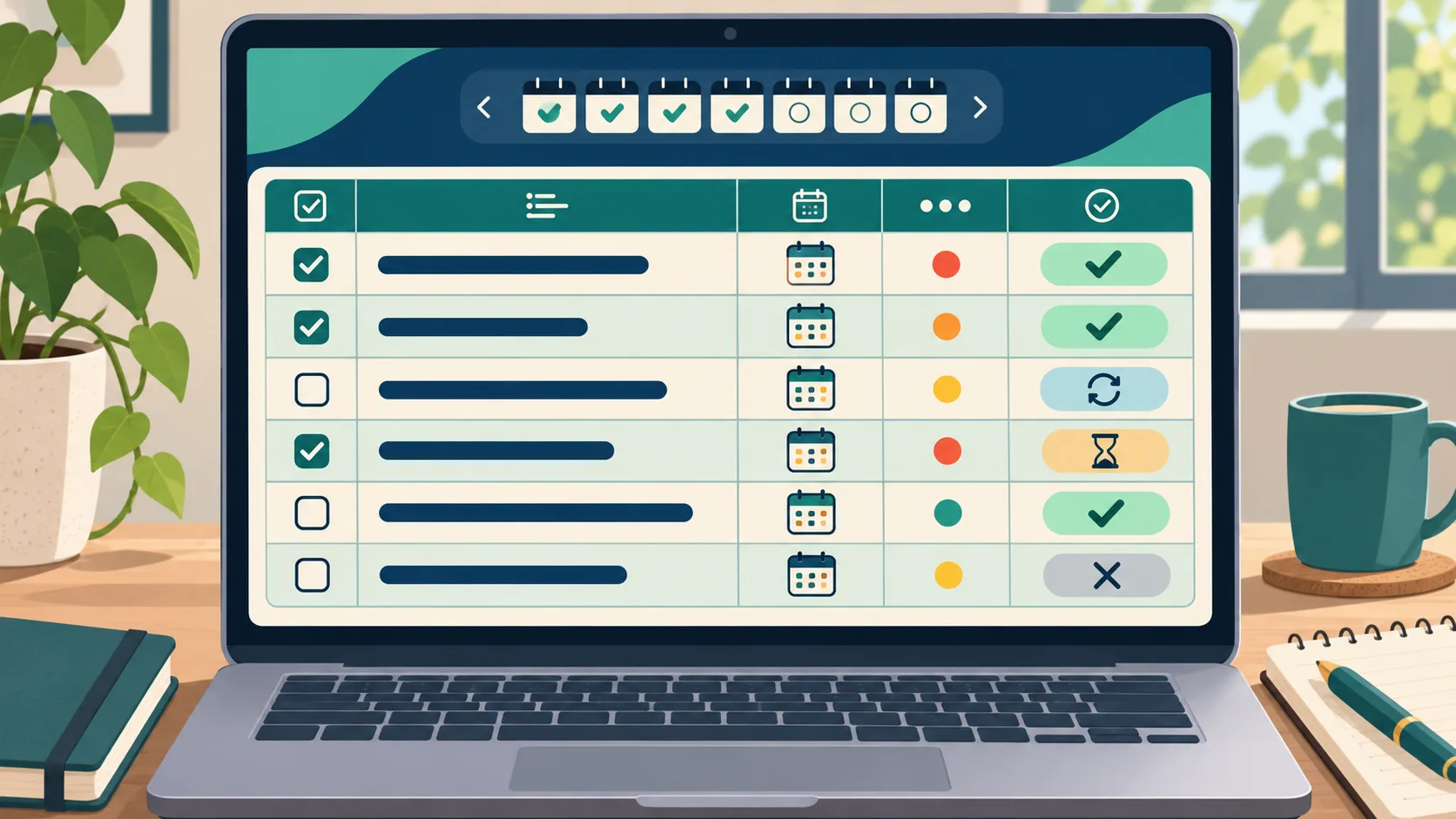
Create these headers in row 1, then enter one task per row. Keep the first version small. If you cannot explain how a column changes a decision, leave it out until you need it.
| Task | Due date | Priority | Status | Repeat | Notes |
|---|---|---|---|---|---|
| Verb + object | Date or blank | High / Medium / Low | Not started / In progress / Waiting / Done | Once / Weekly / Monthly | Short context |
In Excel, select the filled range and choose Home > Format as Table or press Ctrl+T. Confirm that the table has headers. The filter arrows let you show only one priority or status without deleting other tasks.
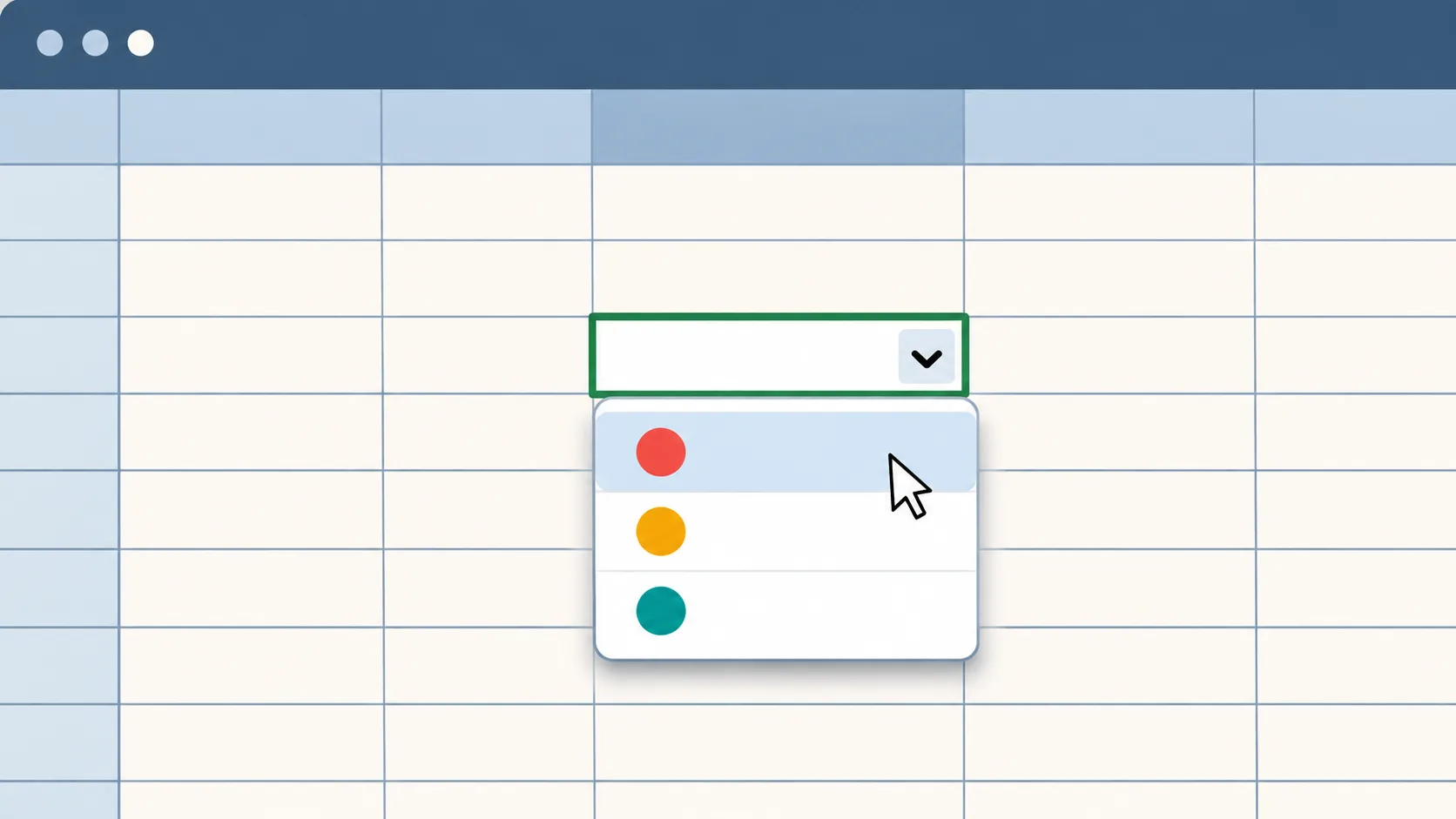
Use a dropdown for Priority and Status if spelling differences make filtering messy. Microsoft’s instructions use Data > Data Validation > List and a source range of allowed values. A dropdown narrows entries to your chosen options; it does not decide the right priority for you. (Microsoft Support: Create a drop-down list, checked November 11, 2026.)
For Priority, enter only values you will use. High, Medium, and Low are enough for many personal task lists. For Status, choose labels that tell you what happens next: Not started, In progress, Waiting, and Done. Avoid adding several near-duplicates, such as Started and In progress, because they make filtering harder.
Make the dropdown source list on a separate part of the workbook if you want to change the options later. Microsoft notes that using an Excel table as the source allows dropdowns to update when items are added or removed from that table. Keep the header out of the source range, then test one cell before filling the validation rule down the column.
If you move the workbook to Google Sheets, check its behavior there before depending on the dropdowns. Google’s instructions say you can open an Excel file in Sheets and save a Sheets copy. They also document saved filter views, which let you keep named daily and weekly filters. (Google Docs Editors Help: Use both Excel and Sheets, checked November 11, 2026; Sort and filter data, checked November 11, 2026.)
Set up daily and weekly views
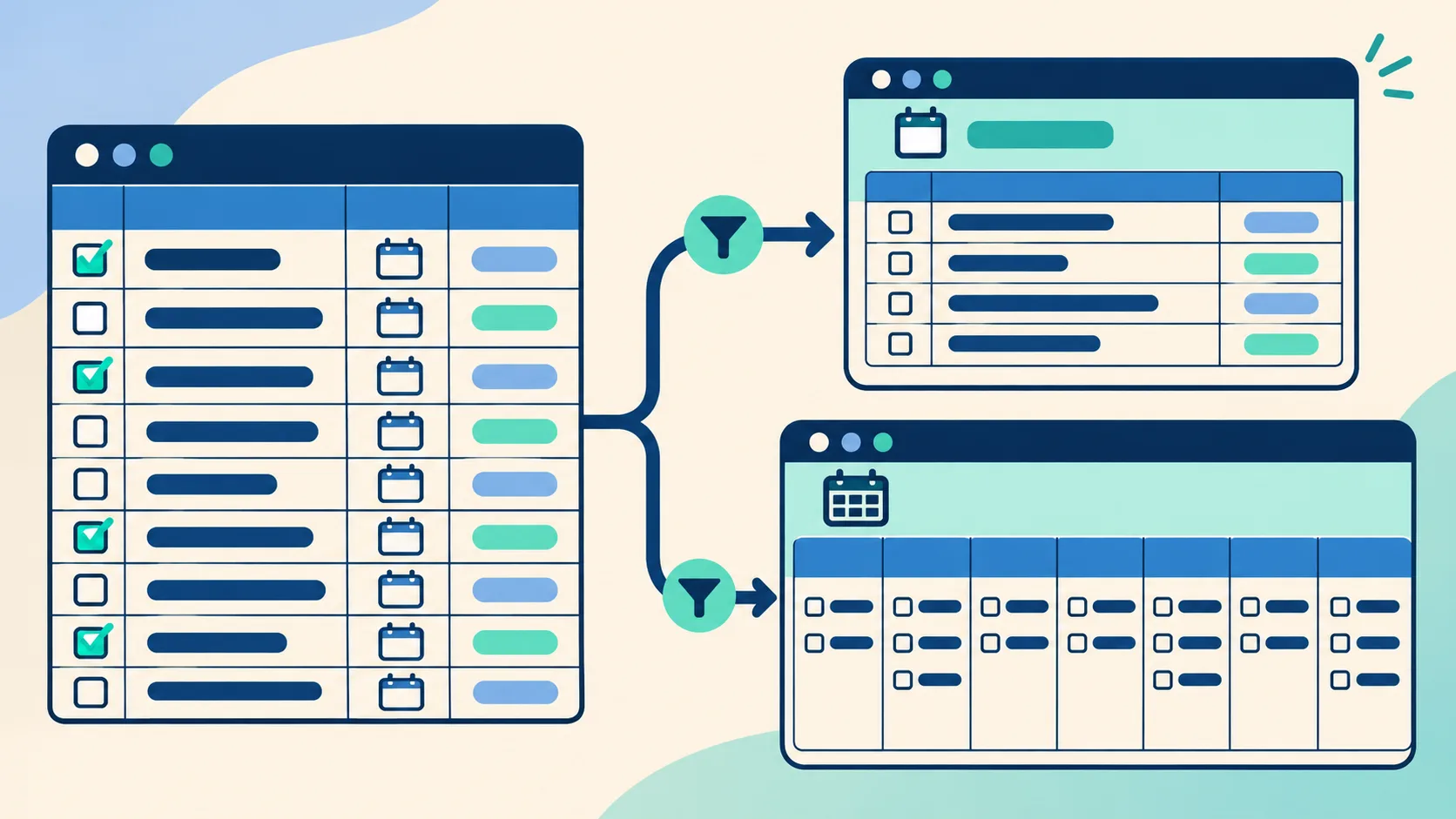
Keep one source table, then filter it for the period you are planning. A daily view should answer “What can I act on today?” A weekly view should answer “What is due before the week ends?” Neither view needs a second copy of every task.
For a simple setup, use the filter arrows on Due date and Status. Clear the Done status from the daily view, then sort the remaining rows by due date. For a weekly pass, show dates through Friday and scan High priority rows first. If you use a custom date range, check the year as well as the month.
When a list grows, freeze the header row so column names stay visible as you scroll. In Excel, select the row below the header and choose View > Freeze Panes > Freeze Panes. Microsoft documents that Excel freezes rows above and columns left of the selected cell. (Microsoft Support: Freeze panes, checked November 11, 2026.)
A filter hides rows that do not match the values you select; it does not remove those tasks from the workbook. This is useful when the full list contains next month’s work, but you need to focus on the current week. Clear a filter when you want to see every row again, and check the filter icon before assuming a task is missing.
For an Excel list with a long backlog, freeze the top row before scrolling. If you also need the Task column to stay visible, select the cell below the header and to the right of the Task column before choosing Freeze Panes. Microsoft’s instructions explain that rows above and columns left of the selected cell remain fixed. Test the view with a longer list before adding more formatting.
Where a spreadsheet list stops being enough
A basic Excel list is a good fit when you want a file you can edit and a few columns that you control. It becomes harder to manage when you repeatedly rebuild the same date ranges, copy recurring tasks, or need several views of one task list.
That is the point to compare your options. Microsoft offers free Excel to-do list templates, and a simple table may be all you need. If you want the same task rows in calendars, a Kanban board, or a Gantt chart, compare those needs before choosing a larger tracker. A spreadsheet is not a substitute for app reminders, phone notifications, or calendar sync.
The All-in-One Task Tracker (by Cosmo Suite: one Excel and Google Sheets file, 11 tabs, $9 once) includes task tracking, recurring tasks, weekly and monthly calendars, a Decision Matrix, Kanban Board, and Gantt Chart. It is one option when you want those views in a spreadsheet file. See the All-in-One Task Tracker or compare its contents with a basic task list template.
Use a basic table if you only need one list and you are comfortable creating the next recurring row yourself. Consider a multi-view tracker if manually rebuilding the same dates or sorting among separate copies has become the work. If phone reminders or collaboration with other people is a must, choose a tool that provides those features instead of expecting a spreadsheet to behave like an app.
Keep the list usable next week
A template is useful only if you can still scan it after a busy week. Keep one row per task, use dates you can sort, and choose a few status values that mean something clear to you. Mark tasks Done instead of deleting them if you want a record of what moved.
Review recurring rows when you make your weekly plan. If a task is Waiting, name the next action in Notes, such as “ask for approval.” If a task has no due date, leave the date blank rather than inventing one. A template supports your decisions; it cannot make the tasks themselves manageable.
If you want to start with a simpler layout, use this task list template for Excel or Google Sheets. If you already know you need calendars, recurring tasks, and priority views together, the All-in-One Task Tracker has those spreadsheet tabs in one file.
The example rows in this article are illustrative. We checked the Excel and Google Sheets instructions linked above on November 11, 2026. Menus and supported features can vary by app version, so confirm a dropdown, filter, or imported formula in your own file before relying on it.
The Cosmo Suite team publishes this guide. Read about this site and our editorial policy for how we handle sources and corrections. To suggest a correction, contact support@ultimatetasktracker.site.
Frequently asked questions
What should an Excel to-do list template include?
Start with Task, Due date, Priority, Status, and Repeat. Add Notes if a task needs context. A small list can work with fewer columns, but due dates and status help you see what needs action and what is already finished.
How do I make a to-do list in Excel?
Put one task in each row, add columns for due date, priority, and status, then turn the range into a table. Use Data Validation to make consistent dropdowns, such as High, Medium, and Low. Filter the table when you want to see only open or urgent tasks.
Can I use an Excel to-do list template in Google Sheets?
Usually, yes. Open the Excel file in Google Sheets and check dropdowns, formulas, formatting, and any Excel-only features. A plain task table transfers more easily than a workbook that depends on macros or specialized formulas. Google documents the conversion steps and supported Excel file flow.
How do I track recurring tasks in Excel?
Add a Repeat column with values such as Weekly or Monthly. A basic list records the frequency, but you still need to create the next dated row yourself. If you use a template with recurring-task automation, check its instructions and confirm the next due date after each completion.
How many tasks should I put on a daily to-do list?
There is no fixed number. Keep the full backlog in one table, then filter to the few tasks you intend to work on today. If every task appears equally urgent, add due dates and priorities before moving items into a daily view.
Is a spreadsheet better than a to-do list app?
It depends on what you need. A spreadsheet gives you editable columns and lets you keep a file you own. An app is usually a better fit when reminders, phone notifications, shared assignments, or calendar sync matter more than spreadsheet control.
Sources
Keep reading
Lists & Templates
Free Task List Template: Copy It, Then Add the 5 Columns That Matter
Task list template you can copy free: a 7-column layout for Excel or Google Sheets, filled in with 12 tasks, plus the 5 columns that turn a list into a plan.
· 7 min read

Lists & Templates
Assignment Trackers That Keep You Ahead (Matched to Your Course Load)
Assignment tracker setup for a full semester: 4 courses and 22 assignments worked through, the hours each one needs, and which tracker fits your course load.
· 8 min read
