Eisenhower Matrix Template: The 4 Boxes, Filled In for a Real Monday
Eisenhower matrix template with the 4 boxes filled in: 15 Monday tasks sorted with the reason for each, plus the Excel and Google Sheets formula that does it.
By All-in-One Task Tracker by Cosmo Suite · Editorial policy
Published · 11 min read
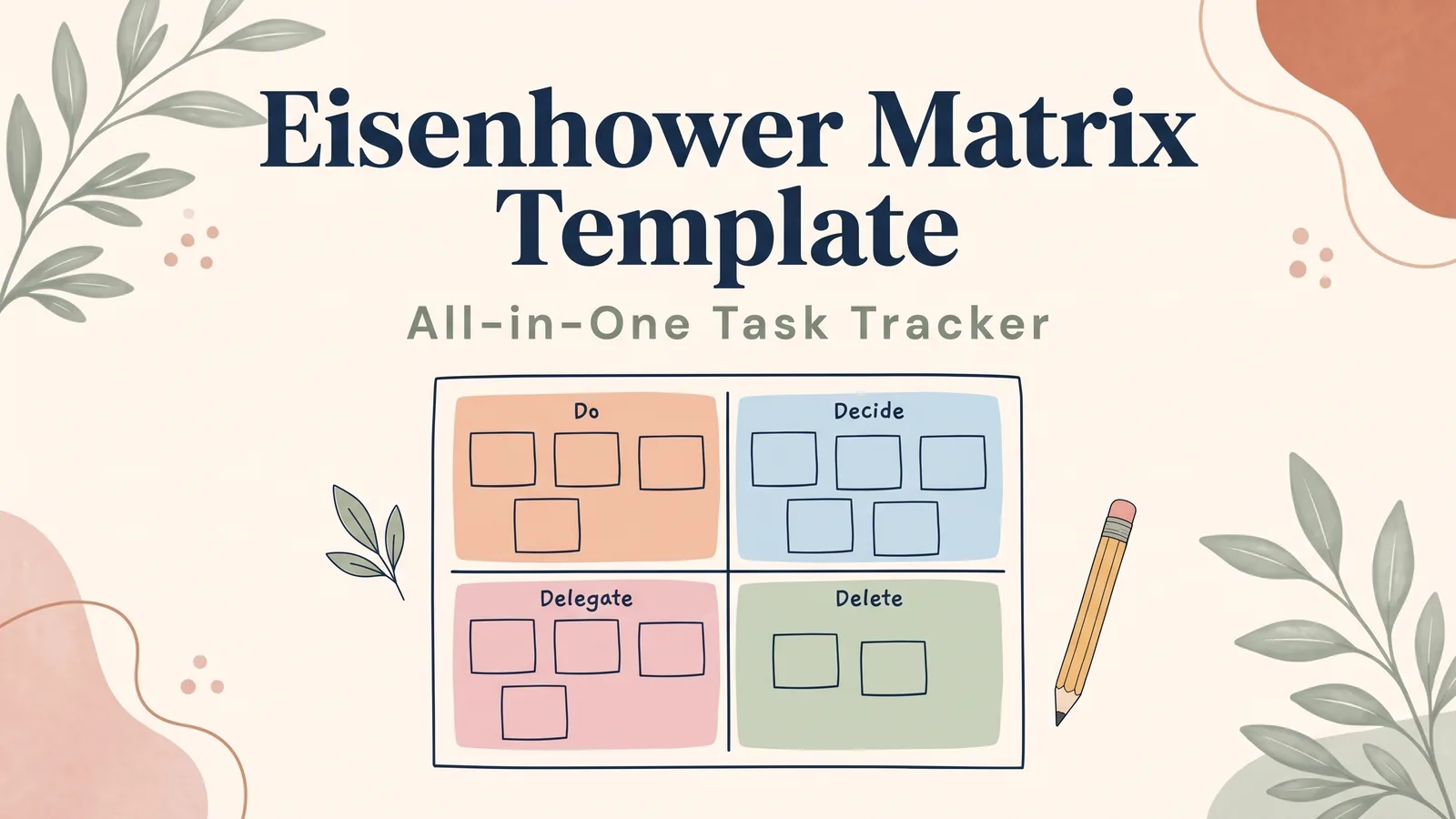
A long Monday list makes everything look urgent. The usual fix is a printable 2x2 grid, filled in once and forgotten by Wednesday, because the real list lives somewhere else.
The short answer: an Eisenhower matrix template has four boxes. Do (urgent and important), Decide (important, not urgent), Delegate (urgent, not important) and Delete (neither). Answer two yes/no questions for each task and the box follows. The template works best when it reads straight from your task list, so nothing gets typed twice.
Below you'll find a grid to copy, a real Monday of 15 tasks sorted with the reason for each, and the Excel and Google Sheets formula that does the sorting.
Eisenhower Matrix Template at a Glance
An Eisenhower matrix is a 2x2 grid that sorts tasks by two questions. Is it urgent, meaning a real cost if it waits? Is it important, meaning it serves a goal or commitment of yours? The four answer combinations give four boxes, and each box has one action. Each row below carries one task from the Monday example.
| Box | Urgent? | Important? | What you do | Monday example |
|---|---|---|---|---|
| Do | Yes | Yes | Do it today or tomorrow | Finish the slides for Tuesday's 10:00 presentation |
| Decide | No | Yes | Give it a date and a time slot | Start revising for the exam in six weeks |
| Delegate | Yes | No | Hand it off, batch it, or answer in two minutes | Return the library books due tomorrow |
| Delete | No | No | Drop it from the list | Reorganize the browser bookmarks |
[Original data] We analyzed the top 10 Google US results for "eisenhower matrix template", captured on 3 and 4 October 2026. Seven are blank templates or template galleries (2 printable PDFs, 5 template pages), 2 are method articles and 1 is a video. The AI Overview Google showed on 3 October listed the four quadrants and template links, with no filled-in example and no formula.
The four boxes are the easy part. Keeping them current is harder: if you copy tasks from your list into a separate grid, the grid goes stale the first time a due date changes. A task tracker whose matrix fills itself from your task list avoids that second copy.
The Copyable 4-Box Layout
The layout has two parts: the grid you look at, and the list that feeds it. Copy the grid below for a quick paper or whiteboard version. For anything you'll keep longer than a day, copy the list layout under it, because the grid can then be rebuilt from the list in seconds.
The grid (urgent across the top, important down the side):
| Urgent | Not urgent | |
|---|---|---|
| Important | Do: today or tomorrow | Decide: pick a date and a slot |
| Not important | Delegate: hand off, batch, or 2-minute reply | Delete: drop it |
The list behind it (six columns):
| Column | What goes in it | Example |
|---|---|---|
| Task | One action, starting with a verb | Call the landlord about the heating |
| Due date | The real deadline, or blank | Mon 5 Oct |
| Urgent | Yes or No | Yes |
| Important | Yes or No | Yes |
| Box | Filled by a formula (below) | Do |
| Reason | One short line | Every day it waits is a cold day at home |
The Reason column is the one most templates leave out. The printable grids, for example, have room for a task name and nothing else. It takes five seconds per task, and it is what stops a task from drifting back into Do the next time you look at it. If you don't have a list yet, start from a task list template with the columns that matter and add Urgent, Important and Box to it.
The Monday Triage, Worked Through
Here is a Monday list of 15 tasks from work, study and home, written for this post. Each task gets the two answers, its box and the reason. The result: 4 in Do, 5 in Decide, 4 in Delegate and 2 in Delete.
| # | Task | Urgent | Important | Box | Reason |
|---|---|---|---|---|---|
| 1 | Finish slides for Tuesday's 10:00 presentation | Yes | Yes | Do | Due tomorrow morning, and your name is on it |
| 2 | Call the landlord about the broken heating | Yes | Yes | Do | Every day it waits is a cold day at home |
| 3 | Renew the car registration (expires Thursday) | Yes | Yes | Do | An expired registration can mean a fine |
| 4 | Submit the course essay due Wednesday | Yes | Yes | Do | It counts toward the grade; late work loses marks |
| 5 | Book the annual eye exam | No | Yes | Decide | Health matters, but no date forces it this week |
| 6 | Start revising for the exam in six weeks | No | Yes | Decide | Early starts are what make it manageable |
| 7 | Back up the photos on your phone | No | Yes | Decide | A lost phone means lost photos; nothing forces it today |
| 8 | Update your CV | No | Yes | Decide | It matters for your next move; give it a Saturday hour |
| 9 | Look up summer camp sign-ups (they open next month) | No | Yes | Decide | Important for the kids, but a month away |
| 10 | Pick up a parcel at the post office by Wednesday | Yes | No | Delegate | Your partner passes the post office on Tuesday |
| 11 | Return the library books due tomorrow | Yes | No | Delegate | A teenager can drop them on the way to school |
| 12 | Tell a colleague where last year's file is | Yes | No | Delegate | A two-minute reply with the folder link |
| 13 | RSVP to the neighbor's party by Tuesday | Yes | No | Delegate | A one-line reply, batched with item 12 |
| 14 | Reorganize the browser bookmarks | No | No | Delete | Nothing changes if it never happens |
| 15 | Watch the webinar recording you signed up for | No | No | Delete | It isn't linked to anything you're working on |
[Unique insight] Two tasks changed boxes once the questions were asked one at a time. The library books (item 11) first looked like a Do task because of the date. They are urgent, but returning them doesn't need you. The photo backup (item 7) first looked skippable because nothing was due. It is important, so it goes in Decide with a slot this Saturday.
Watch for this pattern. Urgency is easy to see on a list because it arrives with a date, while importance only appears when you ask about it task by task.
In practice, the four Do tasks fit into Monday and Tuesday, and the five Decide tasks get dates across the next two weeks. The four Delegate tasks take about ten minutes in total, and the two Delete tasks leave the list for good.
How to Decide Urgent and Important Without Guessing
Use two tests, one per question. Urgent means waiting until Friday would cost something real, such as a fine, a missed grade or a cold flat. Important means the task serves a goal or commitment you'd name if asked. A task that passes neither test belongs in Delete, however loud it feels.
The idea is older than the grid. In a 1954 address, President Eisenhower said: "I have two kinds of problems, the urgent and the important. The urgent are not important, and the important are never urgent." The line is in the transcript of his address to the World Council of Churches in Evanston, Illinois, kept by The American Presidency Project at UC Santa Barbara.
There is research behind the pull of urgent tasks. In five experiments, Zhu, Yang and Hsee found that people chose unimportant tasks with lower payoffs over important ones when the unimportant tasks merely seemed urgent. The study, "The Mere Urgency Effect", appeared in the Journal of Consumer Research in October 2018. In their abstract, pursuing an urgent task "has its own appeal, independent of its objective consequence."
That explains why the two questions work better asked separately. Asked together, urgency usually answers both of them.
- The Friday test (urgent): "If this waits until Friday, what happens?" If the answer is "nothing much," it isn't urgent, whatever the subject line says.
- The goal test (important): "Which goal, deadline or person does this serve?" If you can't name one in a few words, it isn't important to you this week.
- When both are unclear: put it in Decide with a date. A dated "later" still counts as a decision.
Build the Template in Excel or Google Sheets
A spreadsheet version takes four steps: six columns, two dropdowns, one formula and a count per box. The same formulas work in Excel and in Google Sheets, so the file can move between them. Once it's built, you answer two dropdowns per task and the Box column fills itself.
Step 1: Set Up the Six Columns
Put the headers in row 1: Task (A), Due date (B), Urgent (C), Important (D), Box (E) and Reason (F). Format column B as a date. If you already keep a task list, add columns C to E to it instead of starting a new sheet.
Step 2: Add Yes/No Dropdowns
Select C2:D200 and add a dropdown with two values, Yes and No. In Excel, that's Data, then Data Validation, then List. In Google Sheets, it's Insert, then Dropdown. Dropdowns prevent inconsistent entries, such as "yes", "Y" and "Yes ", from breaking the formula.
Step 3: Let a Formula Name the Box
Paste this formula in E2, then fill it down to E200, the same rows as the dropdowns.
=IF(OR(ISBLANK(A2),ISBLANK(C2),ISBLANK(D2)),"",IF(AND(C2="Yes",D2="Yes"),"Do",IF(D2="Yes","Decide",IF(C2="Yes","Delegate","Delete"))))
The ISBLANK test leaves the cell empty until the row has a task and both answers, so empty rows and half-sorted tasks never count as Delete. After that, it checks both answers, then importance alone, then urgency alone, and returns Delete when neither is true. Microsoft's IF function reference notes that IF functions can be nested like this to make several comparisons.
Optional: to mark urgency from the date, put =IF(AND(B2<>"",B2-TODAY()<=4),"Yes","No") in C2. It answers Yes when the due date is four days away or less. The blank check stops an empty date from counting as overdue.
Step 4: Count Each Box and Cap the Do Box
In a corner of the sheet, add =COUNTIF(E2:E200,"Do"), and the same for Decide, Delegate and Delete. Empty rows stay blank, so they add nothing to any box. Microsoft's guide to the COUNTIF function covers the syntax, which Google Sheets shares. Then give the Do count a limit. If it reads more than five for one day, move the least important Do task to Decide with a date. For the rest of the tracker around this, see how to set up a task tracker in Excel.
Where Eisenhower Matrix Templates Go Wrong
Most templates fail for one of six reasons, all about how tasks get into the boxes and how they leave. A plain spreadsheet can handle every one of them.
The Do box overflows. Ten tasks in Do means some are only urgent. Run the goal test again on each one and move the rest.
Decide tasks have no date. "Important, not urgent" turns into "never" without a slot. Every Decide task gets a day, even a rough one.
Delegate is ignored by people who work alone. You may have no team, but you can still hand off, batch or answer in two minutes. In the Monday example, all four Delegate tasks went to someone else or into one short batch.
The grid is a second list. Copying tasks into a separate grid doubles the typing and the grid goes out of date. A grid that reads the list stays current.
Done tasks never leave. A Do box full of finished tasks hides the ones still open. Filter done tasks out, or count them separately.
Nobody re-sorts. Dates move closer every day, so a Decide task can become a Do task by midweek. A weekly re-sort catches it. A date formula built on the TODAY function, which returns the current date each time the sheet recalculates, catches it daily.
The fourth and sixth problems are the ones a spreadsheet solves best. That is how an Excel and Google Sheets task tracker with the Eisenhower matrix built in is set up: the matrix reads the task list, so a changed date moves the task on its own.
Where the All-in-One Task Tracker Fits
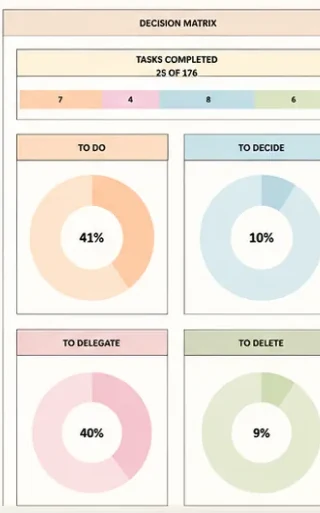
The bottleneck in most matrices is the copy step: tasks typed into a list, then again into a grid. The All-in-One Task Tracker (by Cosmo Suite: one Excel and Google Sheets file, 11 tabs, $9 once) removes that step. Its Decision Matrix tab sorts tasks into Do, Decide, Delegate and Delete from the task lists you already keep.
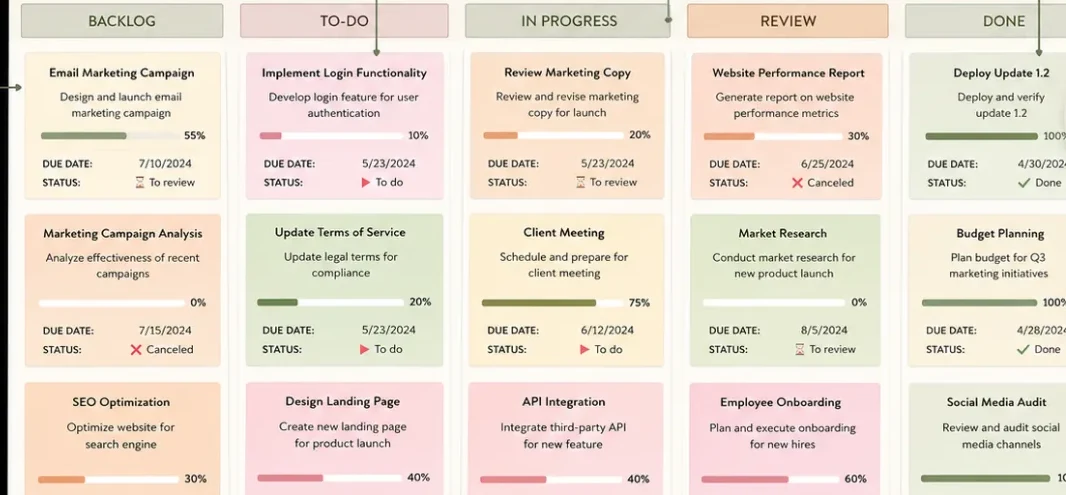
The tracker has 11 tabs in four sections. Tasks go in once, on the Variable Tasks tab for one-off tasks or the Recurring Tasks tab for repeats, set from weekly to yearly. The Decision Matrix tab reads importance and urgency for each task and shows a progress ring for each box. The Kanban Board and Gantt Chart tabs show the same tasks as columns and as a timeline.
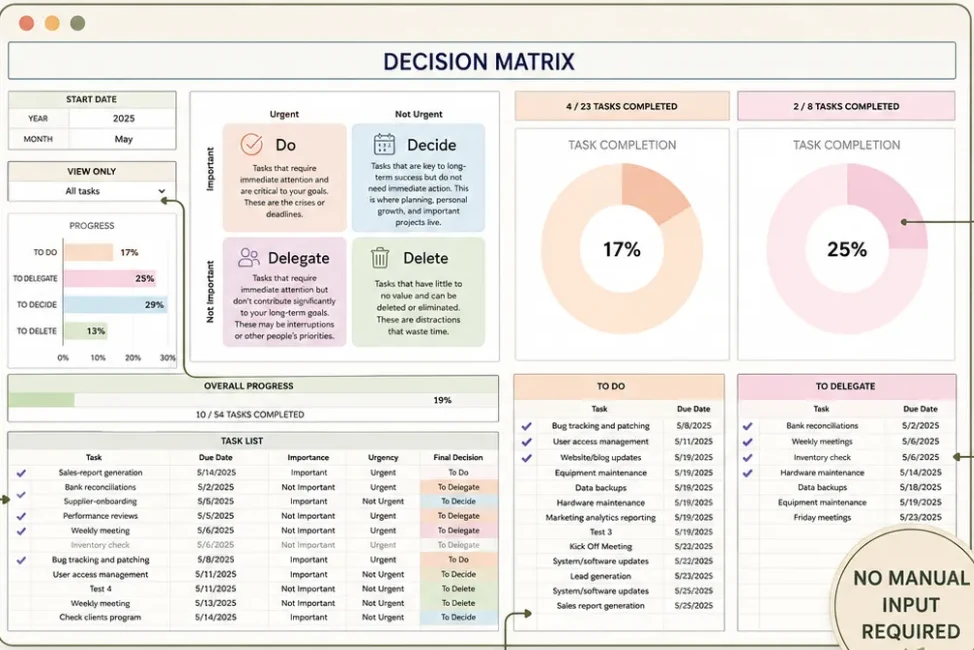
What it does not do: send reminders, sync with Google Calendar or Outlook, or manage team permissions. If you need push alerts on your phone, a task app is the better pick. The tracker is for people who want one file they own, with the list, the matrix and the timeline reading the same rows.
The Do box is also where the board starts. Once today's four tasks are clear, the Kanban tab shows them moving from To-Do to Done.
How we put this together. The Cosmo Suite team that makes the tracker wrote this post. Our methodology: the 15-task Monday is an example written for this post, not data from users, and the top-10 count comes from a live Google US results capture on 3 and 4 October 2026. We opened each source on 4 October 2026, and the screenshots show the template's built-in sample data. Read more about the team behind this site and our editorial policy. If something here is out of date, contact us through the site and we'll correct it. The file costs $9 once, works in Excel and Google Sheets, holds up to 10,000 tasks and comes with a setup PDF and a YouTube tutorial. You can see every tab of the All-in-One Task Tracker before you decide.
Frequently asked questions
Is there a free Eisenhower matrix template?
Yes. The grid and the six-column list in this post are free to copy into Excel or Google Sheets, and the formula that names the box works in both. Printable PDF grids are also free, but they hold a copy of your list, so every change has to be written twice.
Should I use an Eisenhower matrix template in Excel or Google Sheets?
Either works. The IF and COUNTIF formulas behave the same in both apps, and both support dropdowns for the Yes/No columns. Pick Google Sheets if you want to open the list on your phone or share it with someone at home; pick Excel if you prefer working offline.
How many tasks should be in the Do box?
Usually three to five for one day. In the Monday example in this post, four tasks landed in Do, and each had a deadline within three days. If your Do box holds ten, some of them are only urgent; ask whether each one really serves a goal of yours, and move the rest.
What goes in the Delegate box if I work alone?
Tasks that are urgent but don't need you in particular. Hand them to someone at home who is passing that way, answer them in two minutes, or batch them into one short slot. In the Monday example, a library return went to a teenager and two replies went into one ten-minute batch.
How often should I re-sort my Eisenhower matrix?
Once a week, plus a quick daily look at the Do box. Urgency changes as dates get closer: a task due next Friday sits in Decide today and moves to Do early next week. A matrix that reads dates from your list moves those tasks for you; a paper grid needs redrawing.
What is the fastest way to start using an Eisenhower matrix?
Write today's tasks in one list, answer the two questions for each (urgent, important), and let a formula name the box. If you'd rather skip the build, the All-in-One Task Tracker has a Decision Matrix tab that sorts tasks from its task lists into Do, Decide, Delegate and Delete, with a progress ring for each box.
Sources
- The American Presidency Project (UC Santa Barbara): Address at the Second Assembly of the World Council of Churches, Evanston, Illinois, August 19, 1954
- Zhu, Yang and Hsee: The Mere Urgency Effect, Journal of Consumer Research 45(3), October 2018, pp. 673-690
- Microsoft Support: IF function
- Microsoft Support: Use the COUNTIF function in Microsoft Excel
- Microsoft Support: TODAY function
